

You can use these integrations to check Sigrid findings as you work on your code, triage findings, and export findings to your issue tracker if you're not able to fix them right away.
Have you tried them? We'd love your feedback: Share it in our short survey.
QSM extension for Mendix Studio Pro
This extension lets you view and manage findings in Mendix Studio Pro. It focuses on viewing and managing QSM findings from within your IDE. In particular, it lets you do the following:
- Navigate QSM findings in your IDE. This allows for faster and more familiar code navigation than having to navigate your code and findings in QSM itself.
- Show QSM findings for the code you’re currently working on. This makes it easier to take those findings into consideration and apply the boy scout rule when working on those files.
- Triage findings. Changing a finding’s status and adding remarks directly from your IDE makes it faster and more convenient when you need quickly triage large numbers of findings.
- Jump back-and-forth between QSM and your IDE. When needed, you can quickly jump from the finding information in your IDE to viewing the finding details in QSM.
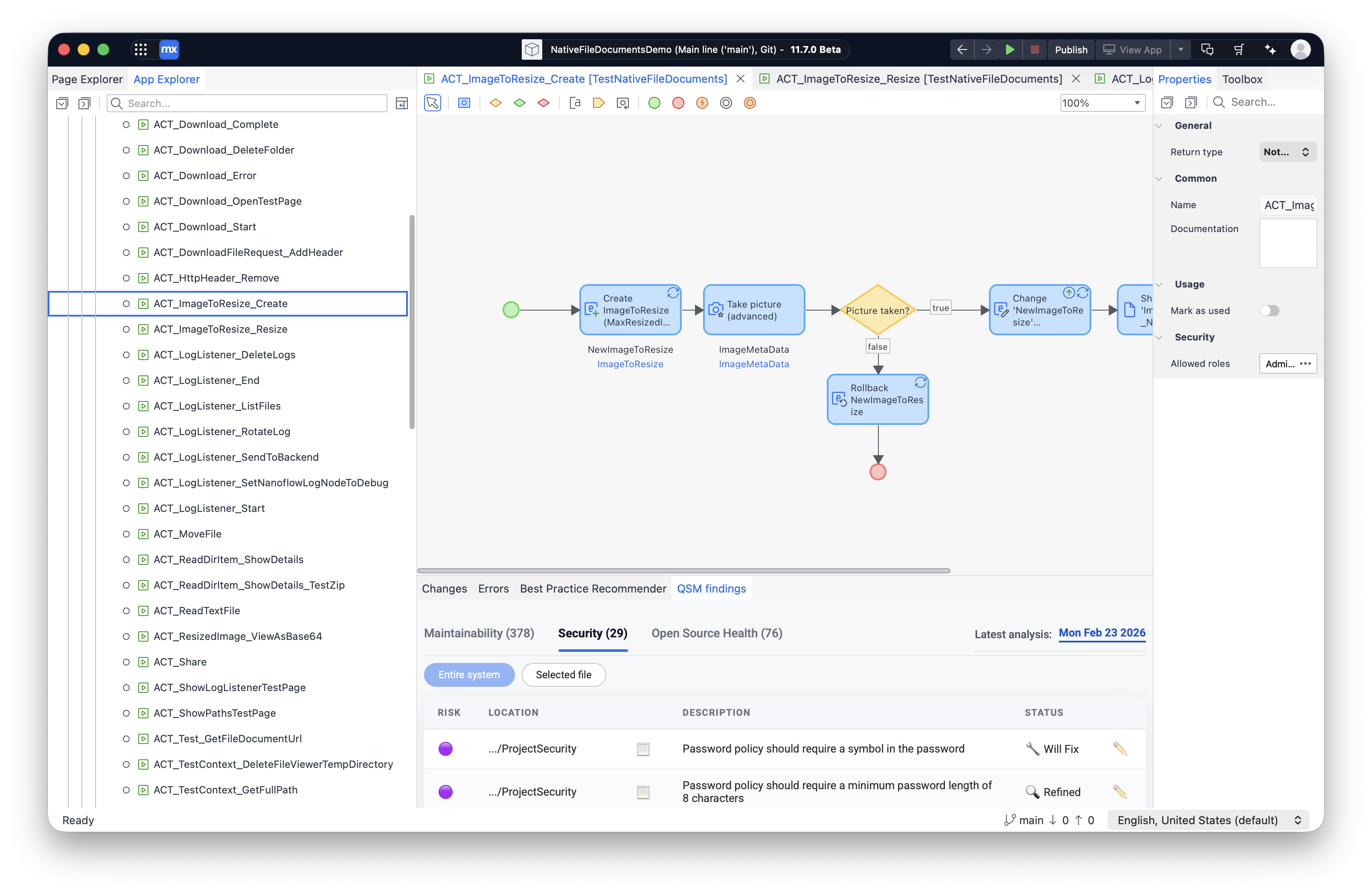
The Mendix Studio Pro extension requires Studio Pro version 11.7 or newer. It is unfortunately not possible to support older versions.
Installing the extension
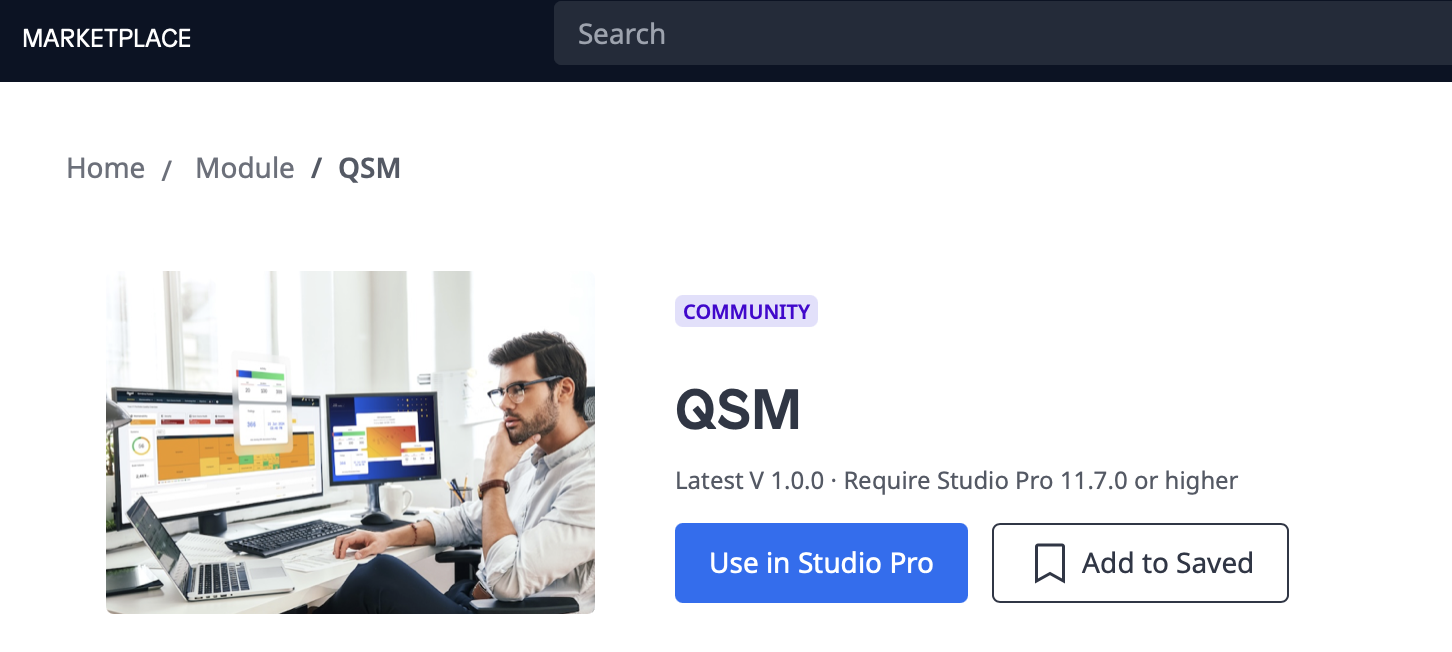
You can find the QSM extension for Mendix Studio Pro in the Mendix Marketplace. You can use the blue “Use in Studio Pro” button to install it.
Configuring the extension
Before you can use the extension, you will first need to provide your QSM credentials.
- Open Mendix Studio Pro.
- In the top menu, select “extensions”.
- Select “QSM”.
- Select “QSM settings”.
- Enter your QSM customer name and system name.
- You will also need to add your authentication token.
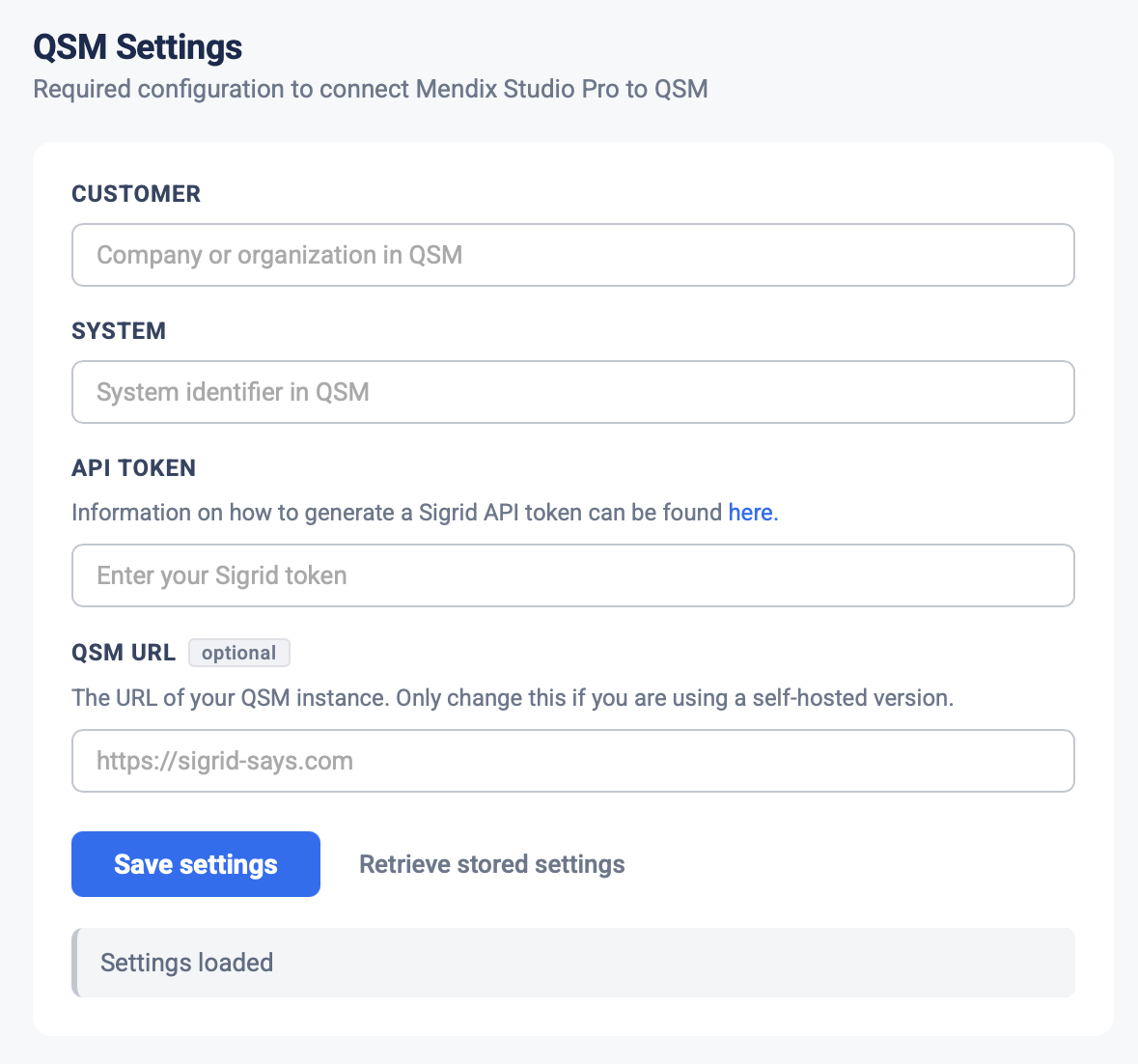
By default, Mendix Studio Pro extensions will store their settings in the project directory. This is also true for the Sigrid/QSM extension, which saves its settings as qsm-settings.json. We recommend you add qsm-settings.json to your .gitignore so that the settings are not committed to version control. This is because the settings file contains your Sigrid token, and it is a security best practices to not commit any credentials to version control.
Using the extension
The QSM extension is not visible by default. You can open it using the following steps:
- In the top menu, select “Extensions”.
- Select “QSM”.
- Select “Show QSM findings”.
When opened, the QSM extension contains multiple tabs, one for each QSM capability.
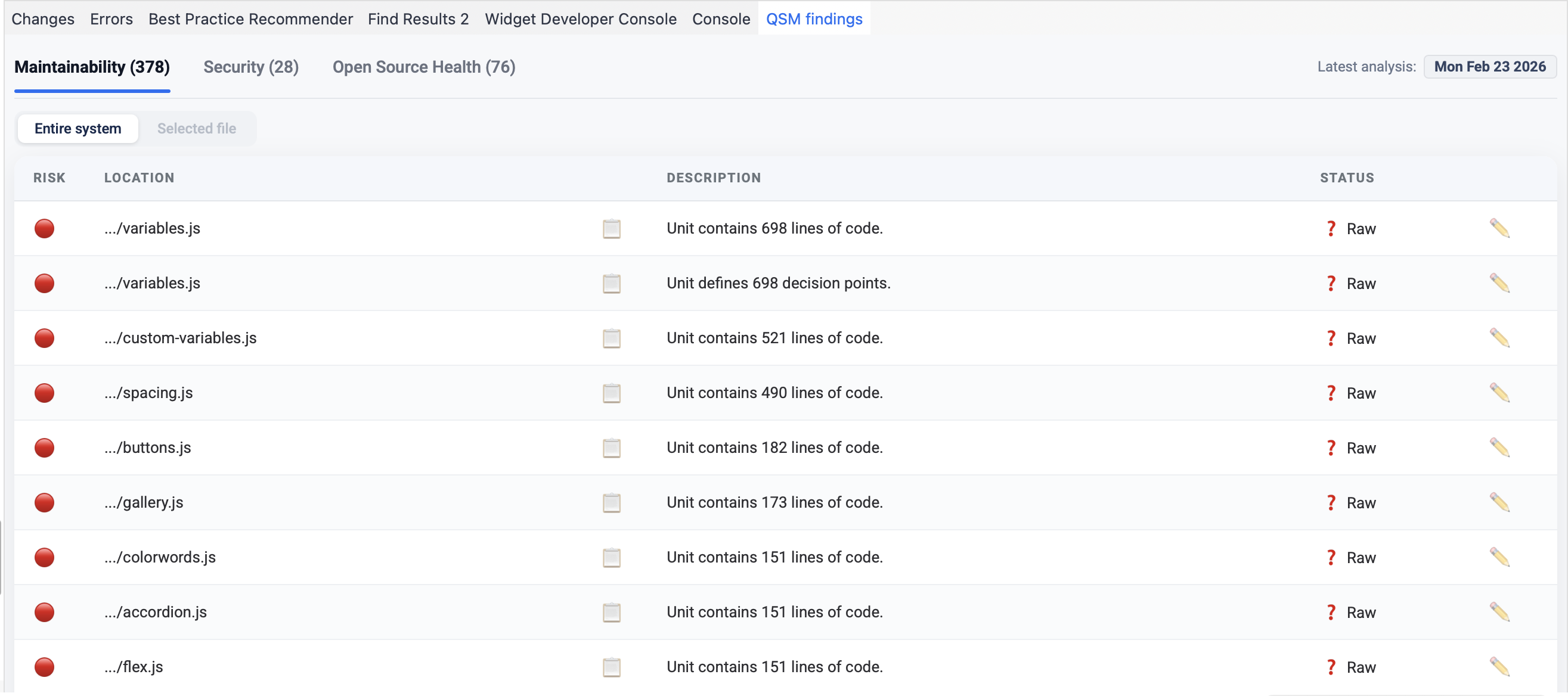
- Scope selector allows you to filter findings between the Entire system or the Selected file currently open in Studio Pro.
- Clicking the folder (📂) icon on a finding opens and focuses the corresponding document in Studio Pro. For non-navigatable findings, a clipboard (📋) icon is shown instead, which displays the full file path.
- The pencil (✏️) icon opens the edit dialog, where you can update a finding’s status and add a remark. Changes are saved to Sigrid automatically.
- For Security findings, clicking the link (🔗) icon opens the selected finding in Sigrid in your browser.
- The New scan request button can be used to trigger an on-demand QSM scan for the system.
- The Reload data button can be used to refresh findings from Sigrid.
Contributing to the extension
The QSM extension for Mendix Studio Pro is open source. The GitHub project contains information on how you can build and install the extension locally.
Contact and support
Feel free to contact SIG’s support team for any questions or issues you may have after reading this documentation or when using QSM.