

You can use these integrations to check Sigrid findings as you work on your code, triage findings, and export findings to your issue tracker if you're not able to fix them right away.
Have you tried them? We'd love your feedback: Share it in our short survey.
Roles and access for system groups
Upcoming: system groups will be available from 30 November 2026.
Access in Sigrid is always a combination of three things:
- Who: a user or a user group
- What: a system or a system group
- Role: Owner, Contributor or Viewer
With the introduction of system groups, the management of roles and access will move from user-level to system-group-level. That means that users can still be organized into user groups, but the action of appointing access permissions (for individual users or for user groups) is configured on system groups – a user’s access will be solely determined based on the access configured on a system group for the individual user or a user group that the user is part of.
The only exception to this is Admin users. Since Admin permissions are always portfolio-wide and involve permissions that exceed system groups level, Admin permissions are set on the user level.
Access is assigned in Portfolio settings > Structure and access, not in User management. In User management you only decide who is an Admin.
Roles
| Role | Level | Description |
|---|---|---|
| Admin | Formally not a group role, but an elevated user level. Always applies on Portfolio level. | Can do everything: all user management, portfolio-level settings and all system group actions. Admin applies to the entire portfolio, and can only be assigned to individual users, not user groups. |
| Owner | System group | Manages membership and settings of their group and the groups below it. Does not have portfolio-level admin capabilities. This role is similar to the former Maintainer role. |
| Contributor | System group | Works with Sigrid in the standard way, including editing findings. Formerly called User. |
| Viewer | System group | Read-only. Can see everything a Contributor can see (no information is hidden), but cannot make changes such as editing findings. |
Authorized actions by role
Owner rights apply within the group the Owner owns (and below it). Admin rights apply to the whole portfolio. Admins always have access to all systems in the portfolio, regardless of system groups, and do not need a role on any group.
| Action | Admin | Owner | Contributor | Viewer |
|---|---|---|---|---|
| Portfolio Overview | ||||
| View Dashboard | ✅✅ | ✅ | ✅ | ✅ |
| View Systems | ✅✅ | ✅ | ✅ | ✅ |
| Capability Specific Overviews | ||||
| View Dashboards | ✅✅ | ✅ | ✅ | ✅ |
| View Ratings | ✅✅ | ✅ | ✅ | ✅ |
| Favorite Systems | ✅✅ | ✅ | ✅ | ✅ |
| Findings and Refactoring Candidates | ||||
| View Findings | ✅✅ | ✅ | ✅ | ✅ |
| Edit Findings | ✅✅ | ✅ | ✅ | |
| View Finding Audit Trails | ✅✅ | ✅ | ✅ | ✅ |
| Create Manual Findings | ✅✅ | ✅ | ||
| Source Code | ||||
| View Source Code | ✅✅ | ✅ | ✅ | ✅ |
| Meta-data | ||||
| View metadata | ✅✅ | ✅ | ✅ | ✅ |
| Configure metadata | ✅✅ | ✅ | ||
| Objectives | ||||
| View objectives | ✅✅ | ✅ | ✅ | ✅ |
| Configure system-level objectives | ✅✅ | ✅ | ||
| Configure portfolio-level objectives | ✅✅ | |||
| User Management | ||||
| View Users | ✅✅ | ✅ | ✅ | ✅ |
| Create/Delete User accounts | ✅✅ | |||
| Edit User Details (other than self) | ✅✅ | |||
| View User Status Details | ✅✅ | |||
| Enable/disable Admin role for users | ✅✅ | |||
| Reset User Password / MFA | ✅✅ | |||
| Create/Edit/Delete User Groups | ✅✅ | |||
| System Group Management | ||||
| Create/Edit/Delete System Groups | ✅✅ | ✅ (1) | ||
| Manage System Group Membership | ✅✅ | ✅ (1) | ||
| Edit System Group Members | ✅✅ | ✅ (1) | ||
| Edit System Group Details | ✅✅ | ✅ (1) | ||
| Manage group-level tokens | ✅✅ | ✅ (1) |
✅ Limited Scope: User is only able to perform this action on systems that are explicitly accessible to the user
✅✅ Global Scope: User is able to perform this action across any system in the portfolio
(1) Only for Groups the user is Owner of, or groups nested inside the group that the user is Owner of
Inheritance of access
Roles cascade down the hierarchy:
- A role on a group applies to all groups and systems below it.
- A role cannot be lowered further down. If you are an Owner of Retail, you are at least an Owner of Online shop and Stores (the groups inside Retail). You cannot be made a Contributor on Online shop.
- A role can be raised further down. A Contributor on Retail can be made an Owner of Online shop. They are then a Contributor on the rest of Retail and an Owner of Online shop.
- Someone can have different roles in different branches of the hierarchy.
Example: Sam gets Contributor on Retail and Owner on Online shop.
| Group / system | Sam’s role | Why |
|---|---|---|
| Retail | Contributor | Direct assignment on system group |
| Stores | Contributor | Inherited from Retail |
| pos-terminal | Contributor | Inherited from Retail |
| Online shop | Owner | Direct assignment (raised) on system sub-group |
| webshop-backend | Owner | Inherited from Online shop |
| Corporate | No access | Not part of Retail |
Access through multiple routes
You can receive access to the same system through several routes, for example directly, through one or more user groups, or through a parent group. The highest access wins. Access is never reduced by another route.
User groups
A user group is a simple collection of users. With the release of system groups, a user group has no system access of its own anymore. In the new situation the same result can be achieved by giving a user group a role in a system group, via Structure and access. Every member of the user group then has that role on that group (and, through inheritance, below it).
Individual users can also be given a role on a system group directly. If a user receives access through several routes, the highest role applies.
Only Admins can create, edit and delete user groups, in User management.
Granting access
Admins can grant access on any group. Owners can grant access only within the groups they own. An Owner can never grant access (to themselves or others) outside their own group scope.
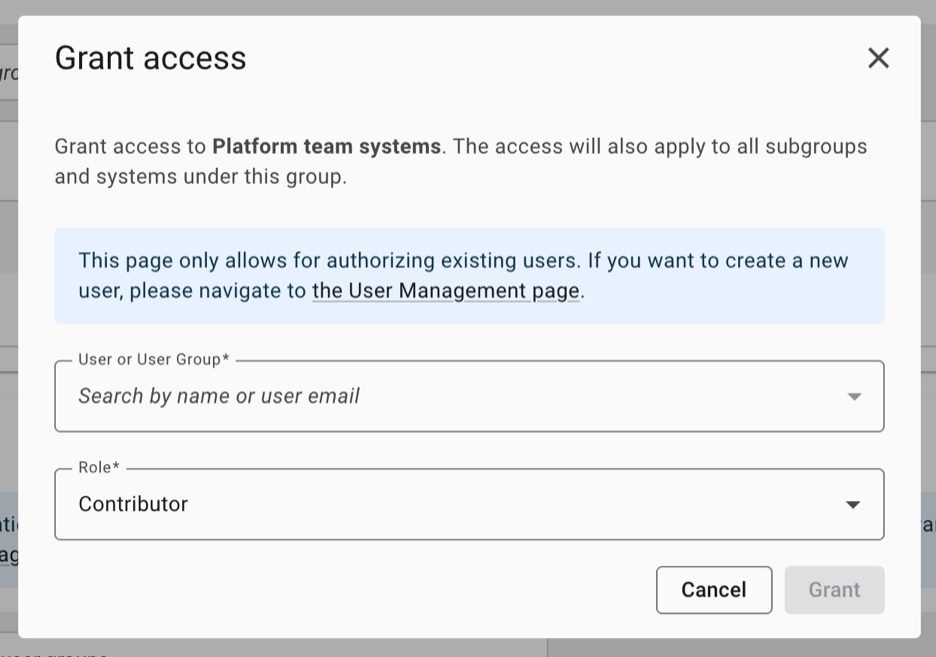
- Go to Portfolio settings > Structure and access and open the system group you want to grant access for.
- Open the [Access] section and choose [+ Grant Access].
- Select a user or user group, and choose a role.
- Click [Grant] to save.
Changing a role
You cannot edit a role in place. To change someone’s role:
- Delete their existing access entry on the group.
- Create a new entry with the new role.